There are a number of keyboard shortcuts in System Settings > Keyboard > Windows, but to add more of them you will need a tool called dconf-editor.
To install this tool open a Terminal and copy/paste next line :
sudo apt-get install dconf-tools
Applications > dconf Editor
Navigate to org > gnome > desktop > wm > keybindings
We are going to add keyboard shortcuts to place windows in these different directions :
Keys that are used : Super ( Windows ) and Keypad numbers.
Assign the following shortcuts :
June 1, 2014
May 30, 2014
New Community Website Launched Today
Stephen Myall, owner of the popular website reboot2elementary, has announced today that a new community website for elementary OS users has launched.
The new website is a collaboration of Stephen Myall with a project team of elementary OS users.
The new elementarynow site is still work in progress and all new visitors are encouraged to provide feedback and comments about what you like, what you don’t like and what you would like to see more of.
In order to participate in the forums you must register as a user and why not introduce yourself to other members while you are there.
What to expect…
What are the objectives of the elementarynow website?
Remember that the new website is still in it's testing period.
After this period the website reboot2elementary will retire.
The new website is a collaboration of Stephen Myall with a project team of elementary OS users.
The new elementarynow site is still work in progress and all new visitors are encouraged to provide feedback and comments about what you like, what you don’t like and what you would like to see more of.
In order to participate in the forums you must register as a user and why not introduce yourself to other members while you are there.
What to expect…
- All your favorite “how tos”, tutorials and much more.
- Keep up to date with the latest elementary news as well as featured editorials.
- Interact with other community members on our forum –a place where elementary users can help themselves by asking and answering questions. Or just say Hi!
What are the objectives of the elementarynow website?
- elementarynow is a growing community supporting the official elementary OS project.
- We strive to be a reputable source of information and guidance for all users of the “stable” elementary operating system.
- elementarynow aims to popularize elementary OS for everyday computer users with all levels of computer experience
- We recognize and support users who wish (or have a requirement) to utilize elementary OS a base and deviate from the “out of the box” experience by individualizing their desktop environment with the use of 3rd party decorations and applications.
- elementarynow will always support and respect the intended design of elementary OS and its applications by making clear distinctions and warning in our publications when users ask to deviate.
Remember that the new website is still in it's testing period.
After this period the website reboot2elementary will retire.
May 26, 2014
Google Chrome With Double Icon In Plank
I recently downloaded Google Chrome from this page. The download for my computer is google-chrome-stable_current_amd64.deb ( Version 35.0.1916.114 ).
Installation is simple : right click the package and choose Open With Software Center.
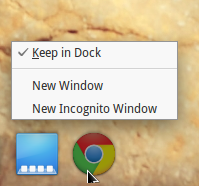
Start Google Chrome with Applications > Google Chrome and an icon will appear in Plank. Right click the icon and check Keep In Dock.
After closing and restarting Google Chrome a second fuzzy looking icon appears in Plank :
To solve this problem :
Open Slingshot ( Applications ) and type gksu in the searchbox :
Run pantheon-files as root :
Navigate to File System >usr >share >applications and find the Google Chrome icon. Right click and choose Open With Scratch.
On three lines starting with Exec=/usr/bin/ you need to replace google-chrome-stable with google-chrome.
Done...
Update : this solution might not work anymore. What can work is the following ( in Terminal ) :
cp /usr/share/applications/google-chrome.desktop ~/.local/share/applications
Open google-chrome.desktop with Scratch and write under [Desktop Entry] the following line :
StartupWMClass=Google-chrome-stable
Installation is simple : right click the package and choose Open With Software Center.
Start Google Chrome with Applications > Google Chrome and an icon will appear in Plank. Right click the icon and check Keep In Dock.
After closing and restarting Google Chrome a second fuzzy looking icon appears in Plank :
To solve this problem :
Open Slingshot ( Applications ) and type gksu in the searchbox :
Run pantheon-files as root :
Navigate to File System >usr >share >applications and find the Google Chrome icon. Right click and choose Open With Scratch.
On three lines starting with Exec=/usr/bin/ you need to replace google-chrome-stable with google-chrome.
Done...
Update : this solution might not work anymore. What can work is the following ( in Terminal ) :
cp /usr/share/applications/google-chrome.desktop ~/.local/share/applications
Open google-chrome.desktop with Scratch and write under [Desktop Entry] the following line :
StartupWMClass=Google-chrome-stable
May 20, 2014
Kingsoft Office Elementary Style
Kingsoft Office is a commercial, closed-source office suite developed by Chinese software developer Kingsoft. Components include: Kingsoft Writer, Kingsoft Presentation and Kingsoft Spreadsheet.
The basic version is free to use, but a fully featured Pro version is also available, for the differences see here.
The latest version Kingsoft Office 2013 is highly compatible with MS Office, but one of the drawbacks is that it doesn’t support OpenDocument Format. Instead you can export your documents to PDF, or save them as MS Office formats or Kingsoft Office formats.
Download Kingsoft Office from here. The latest Linux binary at the time of writing is Linux Alpha 12 Patch 4.
The package kingsoft-office_9.1.0.4280~a12p4_i386.deb will usually be in Applications > Files > Downloads.
To install I used gdebi, a simple tool to install .deb files ( search for gdebi in Software Center if you haven't installed it yet ).
Right click the package kingsoft-office_9.1.0.4280~a12p4_i386.deb and choose Open With GDebi Package Installer.
A lot of extra 32-bit packages will be installed if running a 64-bit system ( see Applications > System Settings > About ).
Kingsoft Writer, ongmani skin ( right corner > Skin manager ) :
Zsolt Ádám Albert has altered this skin a bit to have a more elementary look :
Download the needed wps_office_elementary_theme.zip from here.
Open a Terminal and :
cd Downloads
sudo unzip -o wps_office_elementary_theme.zip -d /opt/kingsoft/wps-office/office6/res/themes
Start e.g. Kingsoft Writer and right click the top bar and check Use System Title Bar.
The basic version is free to use, but a fully featured Pro version is also available, for the differences see here.
The latest version Kingsoft Office 2013 is highly compatible with MS Office, but one of the drawbacks is that it doesn’t support OpenDocument Format. Instead you can export your documents to PDF, or save them as MS Office formats or Kingsoft Office formats.
Download Kingsoft Office from here. The latest Linux binary at the time of writing is Linux Alpha 12 Patch 4.
The package kingsoft-office_9.1.0.4280~a12p4_i386.deb will usually be in Applications > Files > Downloads.
To install I used gdebi, a simple tool to install .deb files ( search for gdebi in Software Center if you haven't installed it yet ).
Right click the package kingsoft-office_9.1.0.4280~a12p4_i386.deb and choose Open With GDebi Package Installer.
A lot of extra 32-bit packages will be installed if running a 64-bit system ( see Applications > System Settings > About ).
Kingsoft Writer, ongmani skin ( right corner > Skin manager ) :
Zsolt Ádám Albert has altered this skin a bit to have a more elementary look :
Download the needed wps_office_elementary_theme.zip from here.
Open a Terminal and :
cd Downloads
sudo unzip -o wps_office_elementary_theme.zip -d /opt/kingsoft/wps-office/office6/res/themes
Start e.g. Kingsoft Writer and right click the top bar and check Use System Title Bar.
May 15, 2014
Create And Modify Starters With Arronax
Arronax is a program to create and modify starters (technically: .desktop files) for applications and locations (URLs).
.desktop files are located in /usr/share/applications, but can also be placed in
~/.local/share/applications ( in your Home folder ).
Arronax supports Drag&Drop.
To install go to the Download section and download arronax-base_0.05_all.deb.
Right click the file and choose Open With Software Center.
Applications > Arronax will start the application.
Alternative : MenuLibre
.desktop files are located in /usr/share/applications, but can also be placed in
~/.local/share/applications ( in your Home folder ).
To install go to the Download section and download arronax-base_0.05_all.deb.
Right click the file and choose Open With Software Center.
Applications > Arronax will start the application.
Alternative : MenuLibre
May 10, 2014
Download Iso With Upgraded Kernel
The iso downloaded from the main site ships with kernel 3.2.0-51-generic as can be seen in the picture below when running the command uname -r in terminal :
You might have problems booting and installing elementary OS with newer hardware. In this case you can download an upgraded iso with a newer kernel from this page : http://sourceforge.net/projects/elementaryos/files/unstable/ .
Choose elementaryos-unstable-amd64.20140331.iso or elementaryos-unstable-i386.20140331.iso according to your architecture ( unstable here just means updated ).
Kernel version : 3.11.0-19-generic ( date : 2014-04-01 ).
Elementary OS is based on Ubuntu 12.0.4 LTS ( Long Time Support ). In order to support a wider variety of hardware Ubuntu releases so called Point Releases ( 12.0.4.x ) with an updated kernel, X.Org-Stack and Mesa ( see : LTS Enablement Stacks ). Latest version is 12.0.4.4.
In case you run elementary OS with kernel 3.2 successfully and think about upgrading to a newer kernel, you should read this article first : http://shnatsel.blogspot.com.es/2013/12/why-you-should-not-upgrade-kernel-on.html
You might have problems booting and installing elementary OS with newer hardware. In this case you can download an upgraded iso with a newer kernel from this page : http://sourceforge.net/projects/elementaryos/files/unstable/ .
Choose elementaryos-unstable-amd64.20140331.iso or elementaryos-unstable-i386.20140331.iso according to your architecture ( unstable here just means updated ).
Kernel version : 3.11.0-19-generic ( date : 2014-04-01 ).
Elementary OS is based on Ubuntu 12.0.4 LTS ( Long Time Support ). In order to support a wider variety of hardware Ubuntu releases so called Point Releases ( 12.0.4.x ) with an updated kernel, X.Org-Stack and Mesa ( see : LTS Enablement Stacks ). Latest version is 12.0.4.4.
In case you run elementary OS with kernel 3.2 successfully and think about upgrading to a newer kernel, you should read this article first : http://shnatsel.blogspot.com.es/2013/12/why-you-should-not-upgrade-kernel-on.html
May 4, 2014
ElementaryUpdate
The original website http://www.elementaryupdate.com/ has gone for a while ( see my former post http://eos-snippets.blogspot.nl/2014/03/tweaks-and-super-wingpanel.html ) , but luckily the content has been saved.
The new address is : http://elementarytips.blogspot.nl/
All of the repos and such are still intact. You can find a list of all the packages here:
https://launchpad.net/~versable/+archive/elementary-update
For adding this PPA ( Personal Package Archive ) to your software sources see my former post.
Adding a PPA to your system is always at your own risk : see Are PPA's safe to add to my system and what are some “red flags” to watch out for?
Subscribe to:
Posts (Atom)